Too much follow-up
Manual assignments and status updates add coordination work.
Bringing tasks, team updates, and AI assistance into one connected workspace.
Explore the experience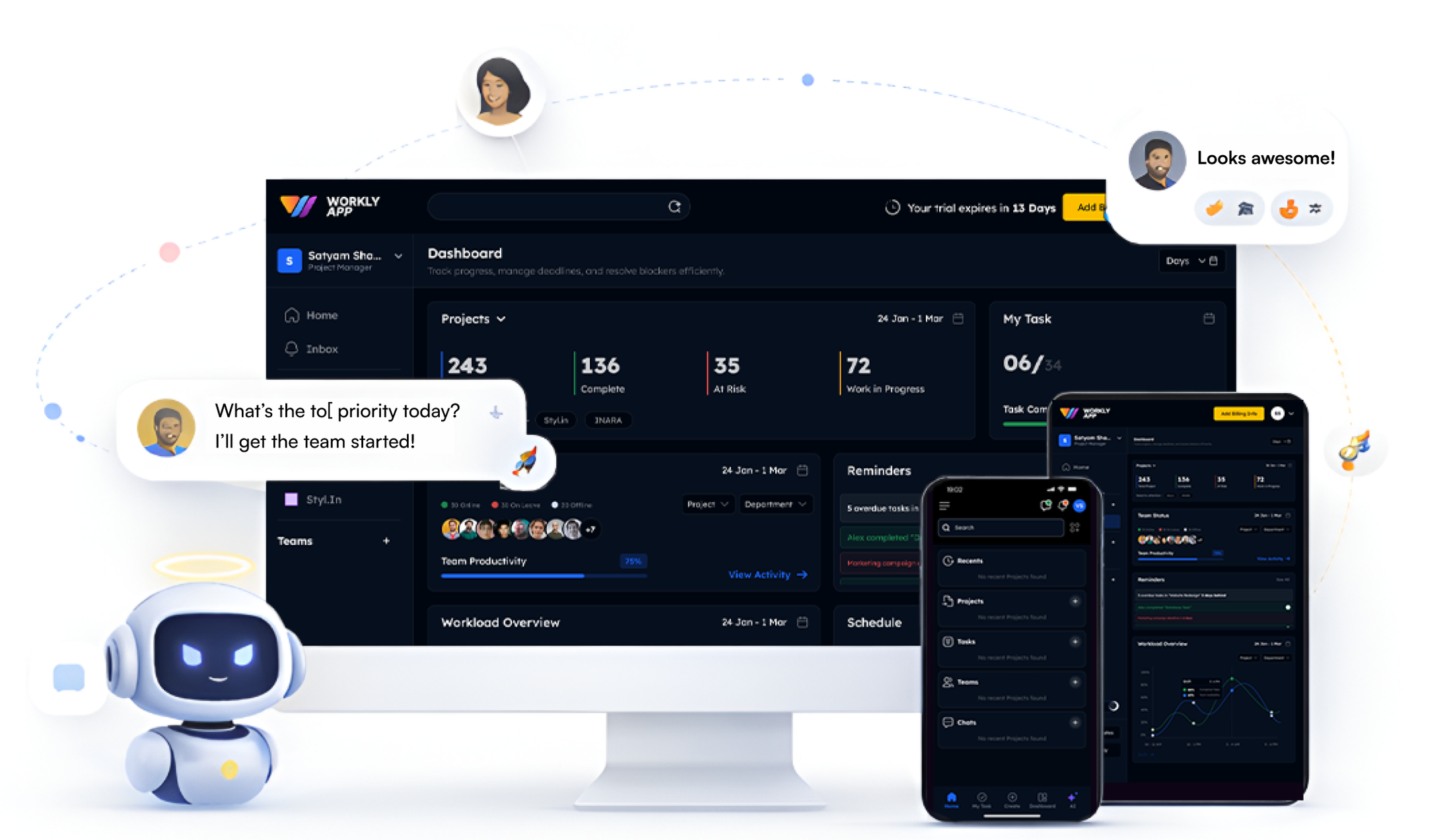 ONE WORKSPACE. A CLEARER NEXT STEP.
Project managers spend time assigning tasks and chasing updates. Teams move between tools, while different departments need different ways of working.
How might we help teams understand what needs attention—and act on it from the same workspace?
Manual assignments and status updates add coordination work.
Tasks, conversations, and project information compete for attention.
Departments and individuals need different views of their work.
The case-study research combines interviews, surveys, usage-pattern analysis, and competitor review. The clearest themes were task visibility, manual updates, and flexible workflows.
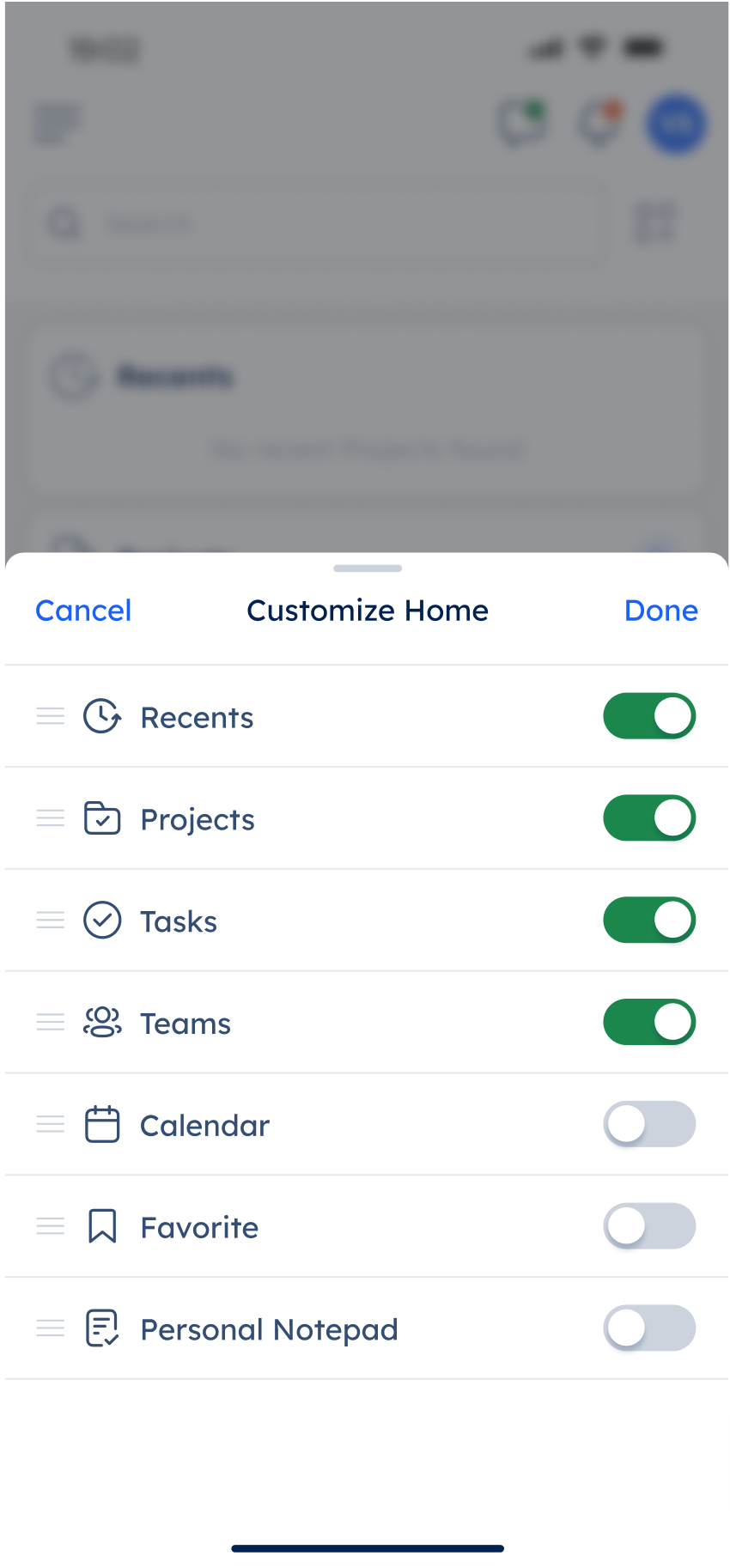
Group work into familiar sections and let people choose what appears on Home.
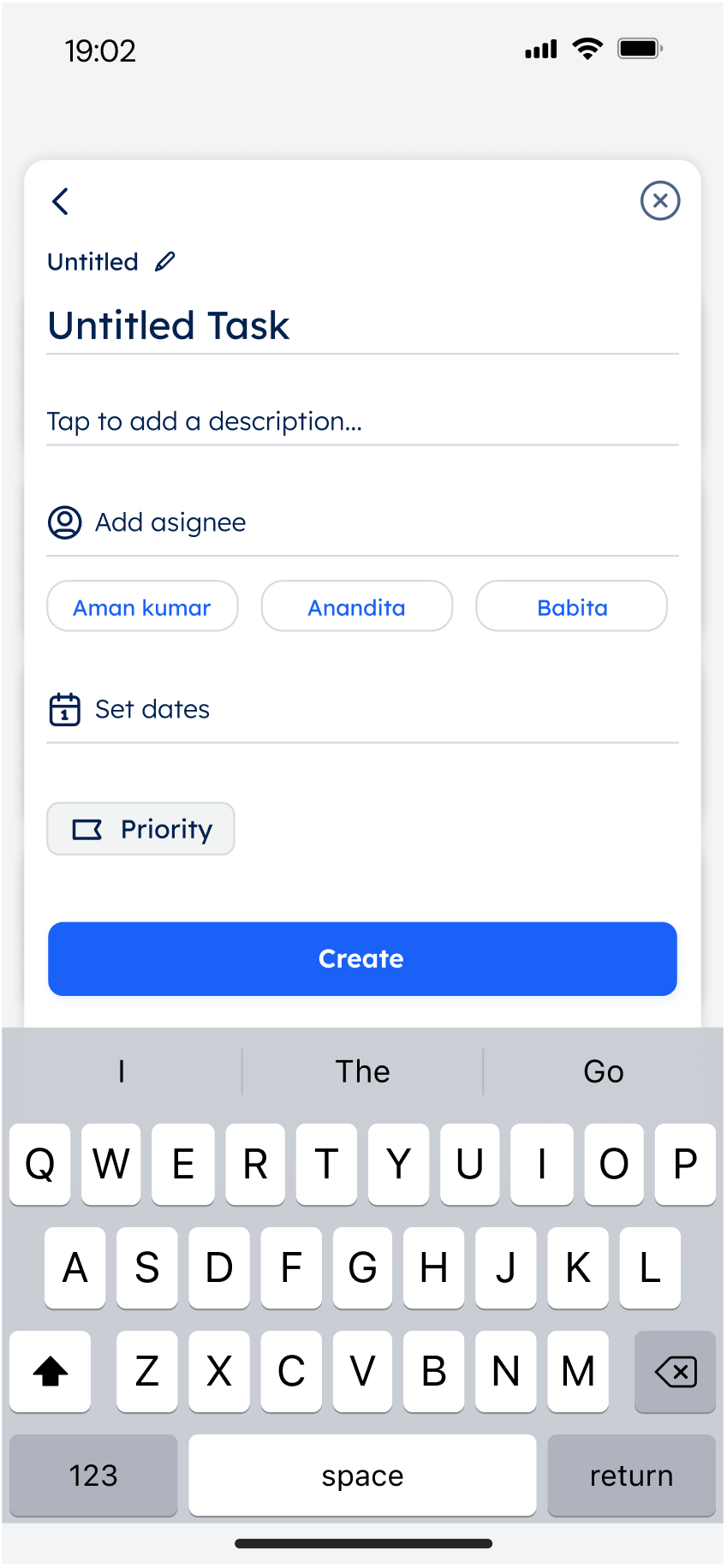
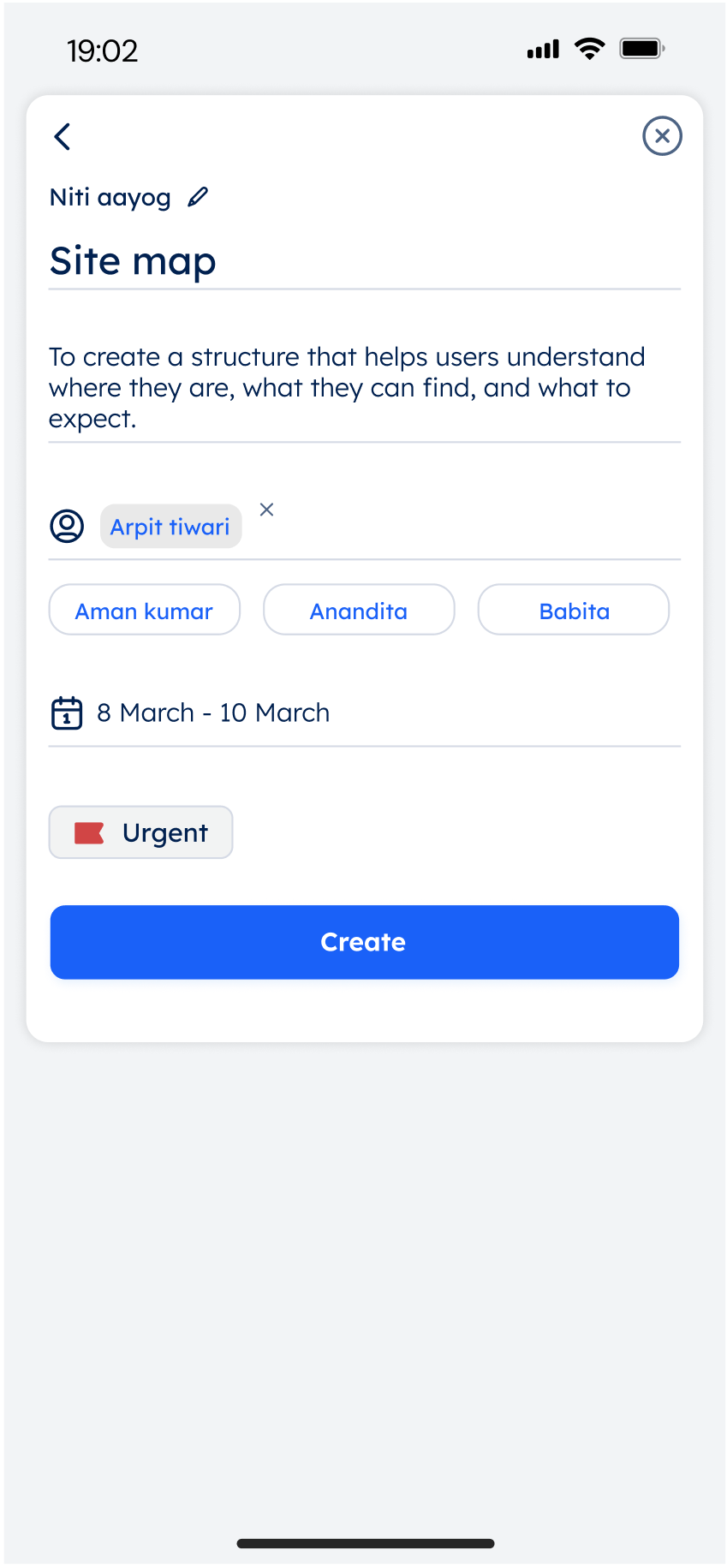
Bring project, description, owner, dates, and priority into one task-creation panel.
Connect recordings to a summary and reviewable task suggestions.
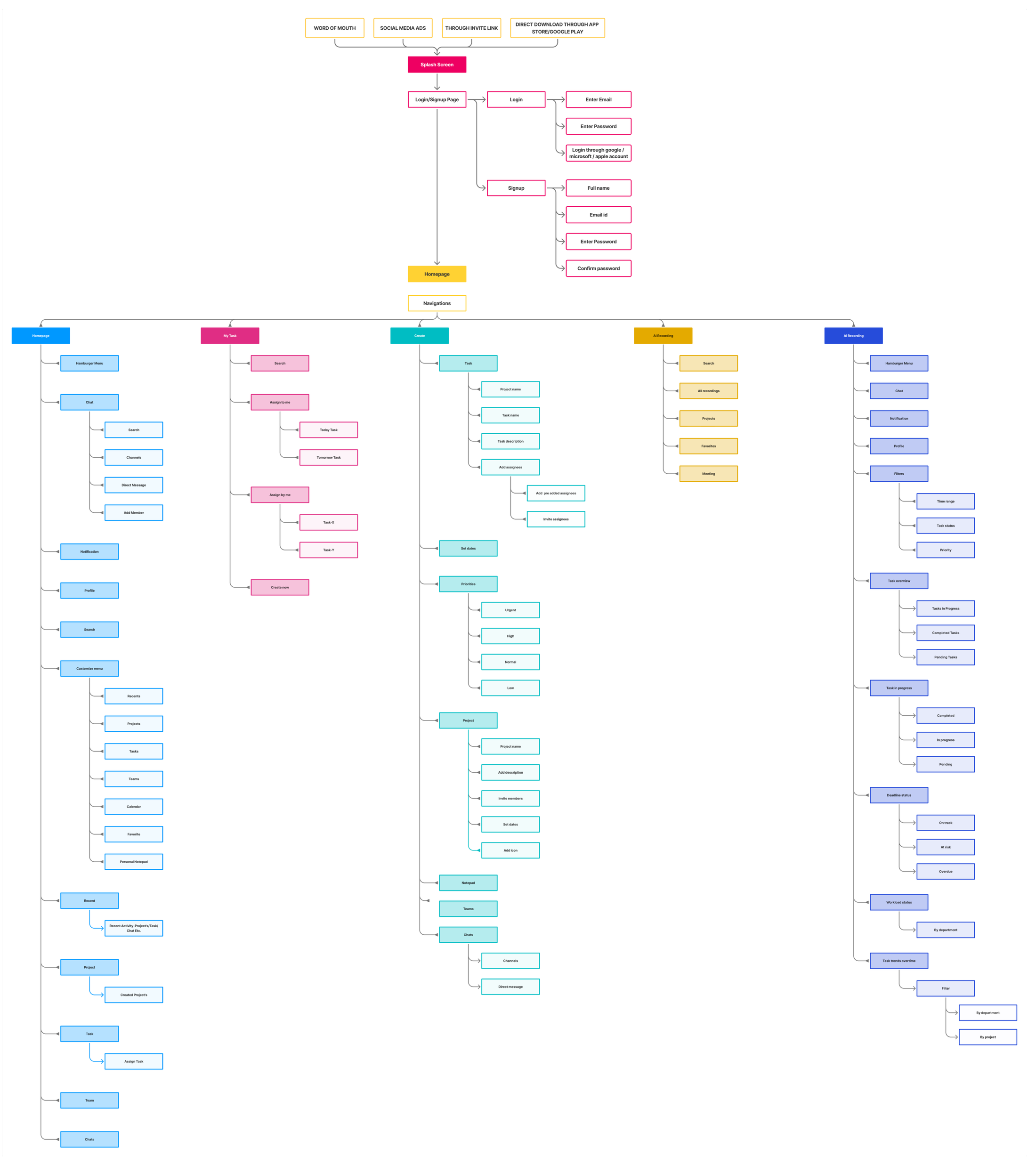
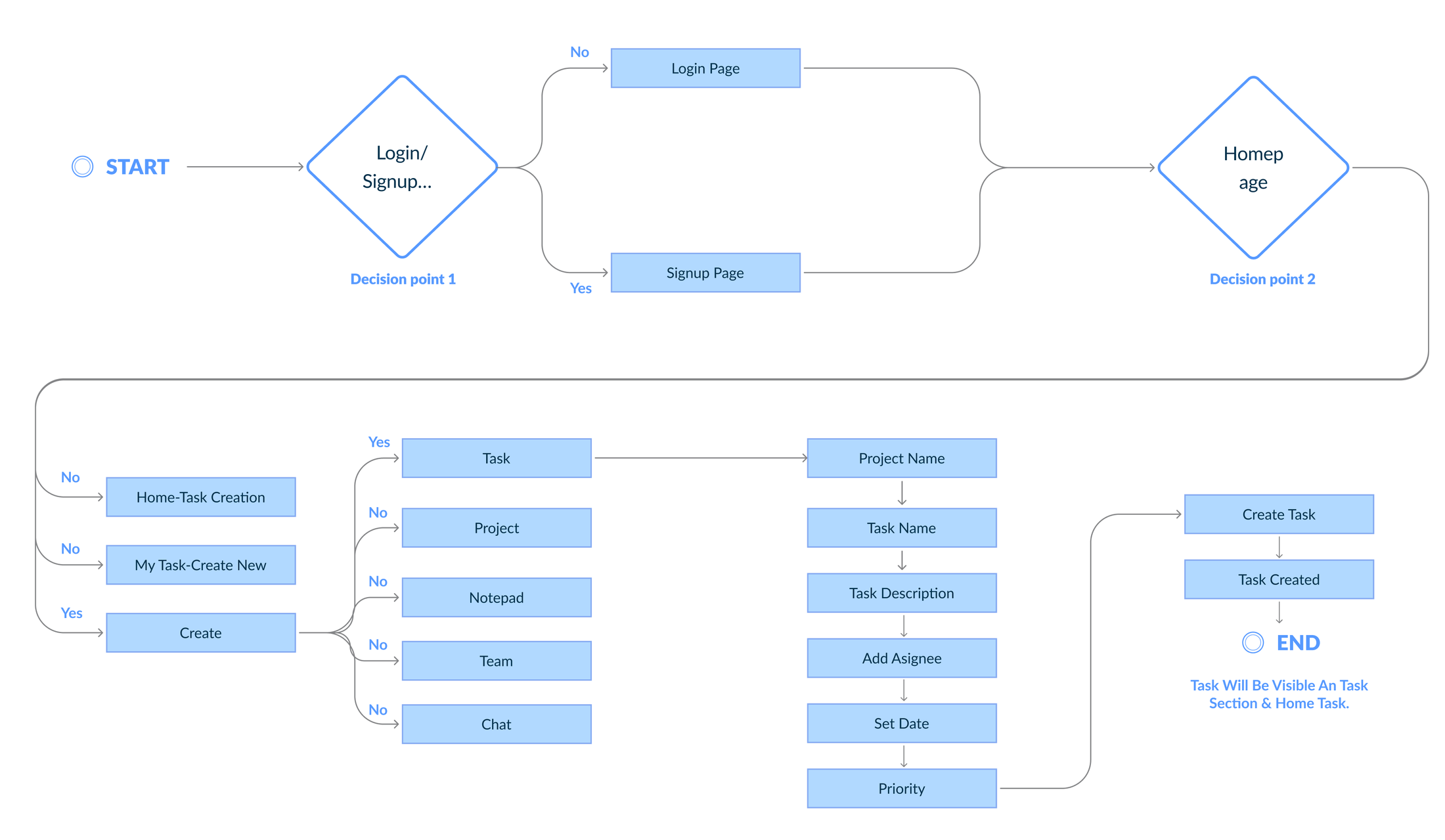
The information architecture maps the wider product. The task flow connects entry points, required details, and the saved task. Open either diagram to inspect the original detail.
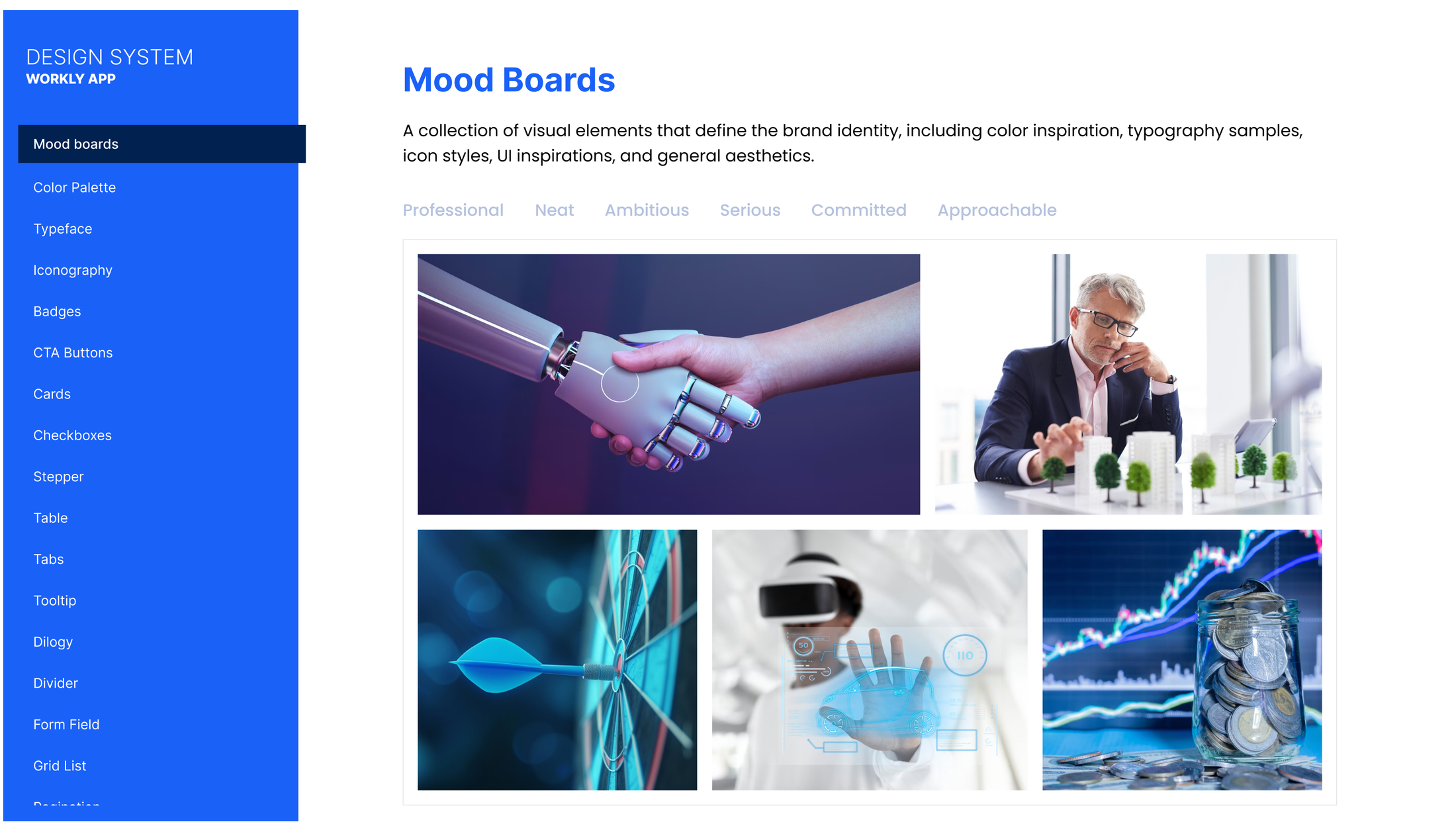
The screens use pale surfaces, blue action buttons, familiar bottom navigation, and compact status labels. The visual exploration below captures the broader mood and direction.
This supplied board shows the moodboard and foundation categories. The interface examples that follow show how the visual direction appears in use.
 Enlarge ↗
The project spans web, desktop, and mobile. The mobile flows below show how the core experience works—from getting started to reviewing progress.
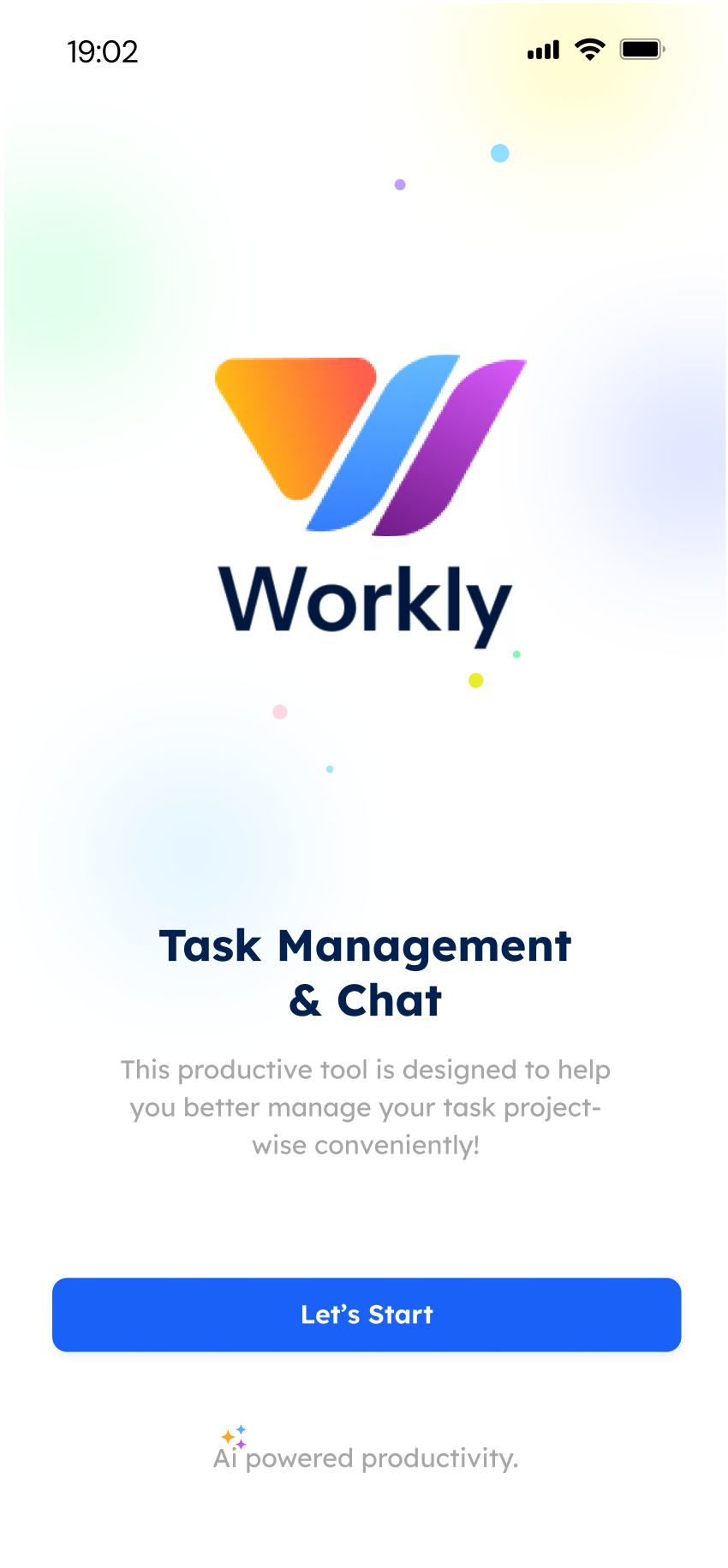
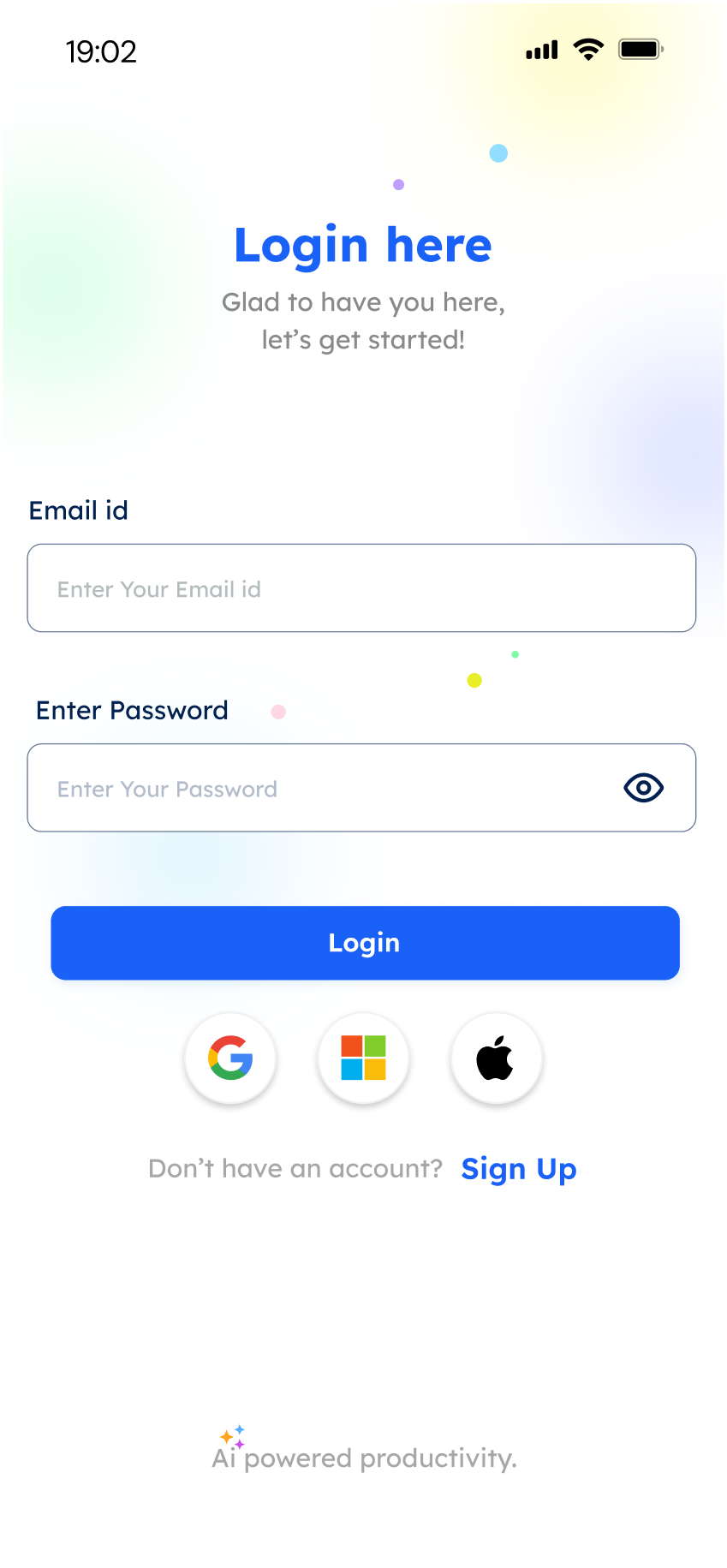
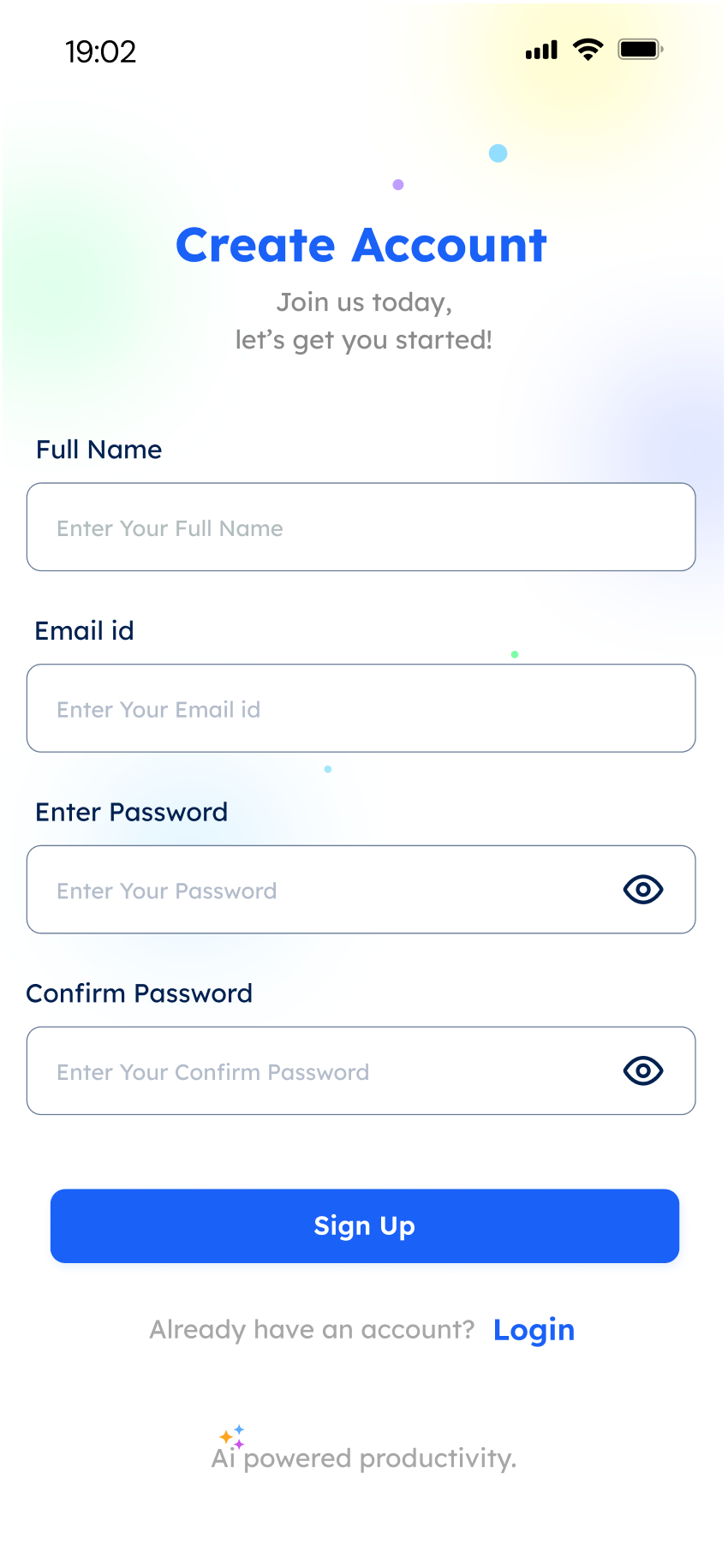
The opening introduces task management and chat, then separates returning users from new accounts. Login also includes familiar provider options.
The visual identity carries from the welcome screen into the forms, while blue highlights the primary action.
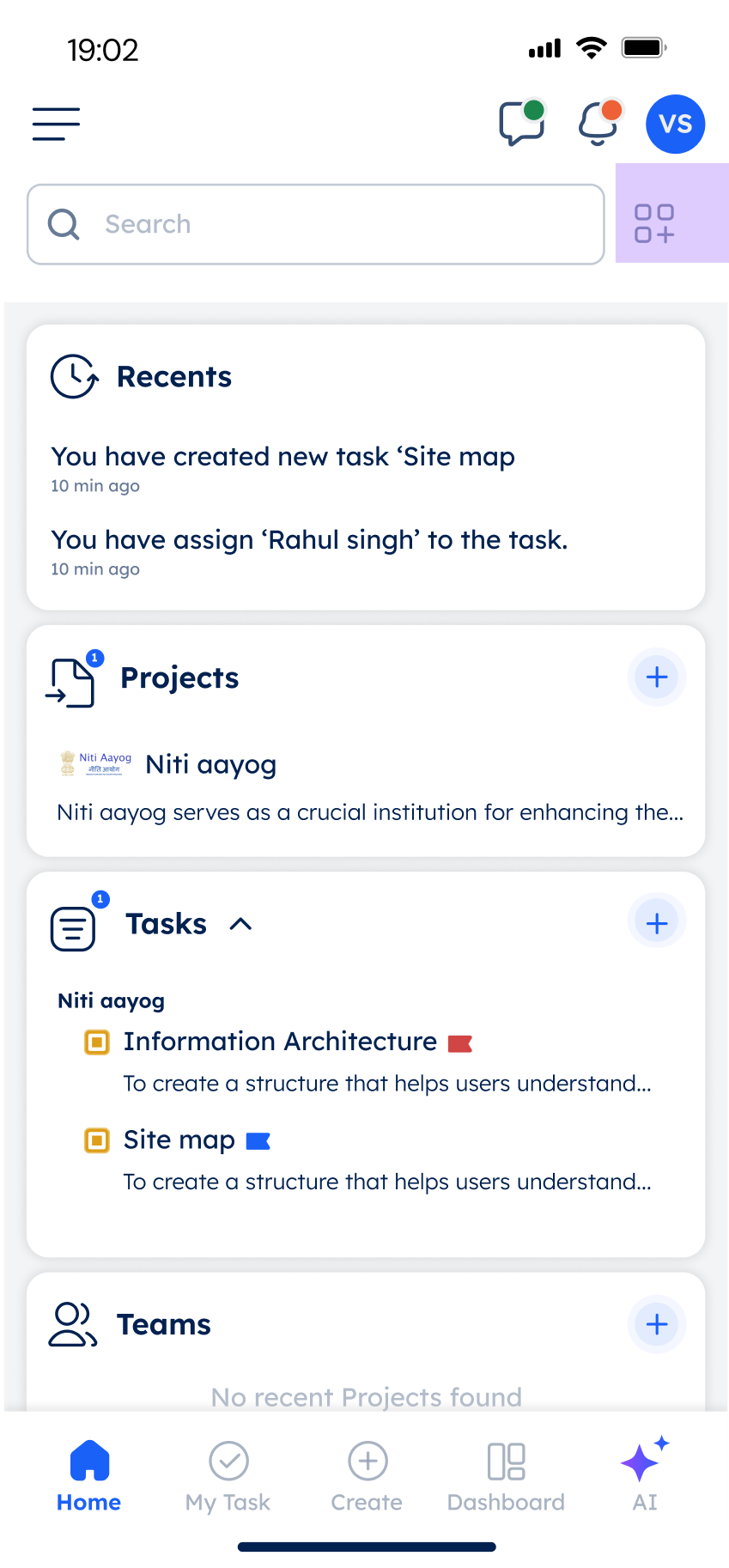
To address the visibility problem identified in discovery, Home brings recent activity, projects, tasks, teams, and chats together. A customisation sheet lets people show the sections they need.
A shared structure keeps navigation familiar, while personalisation makes room for different working styles.
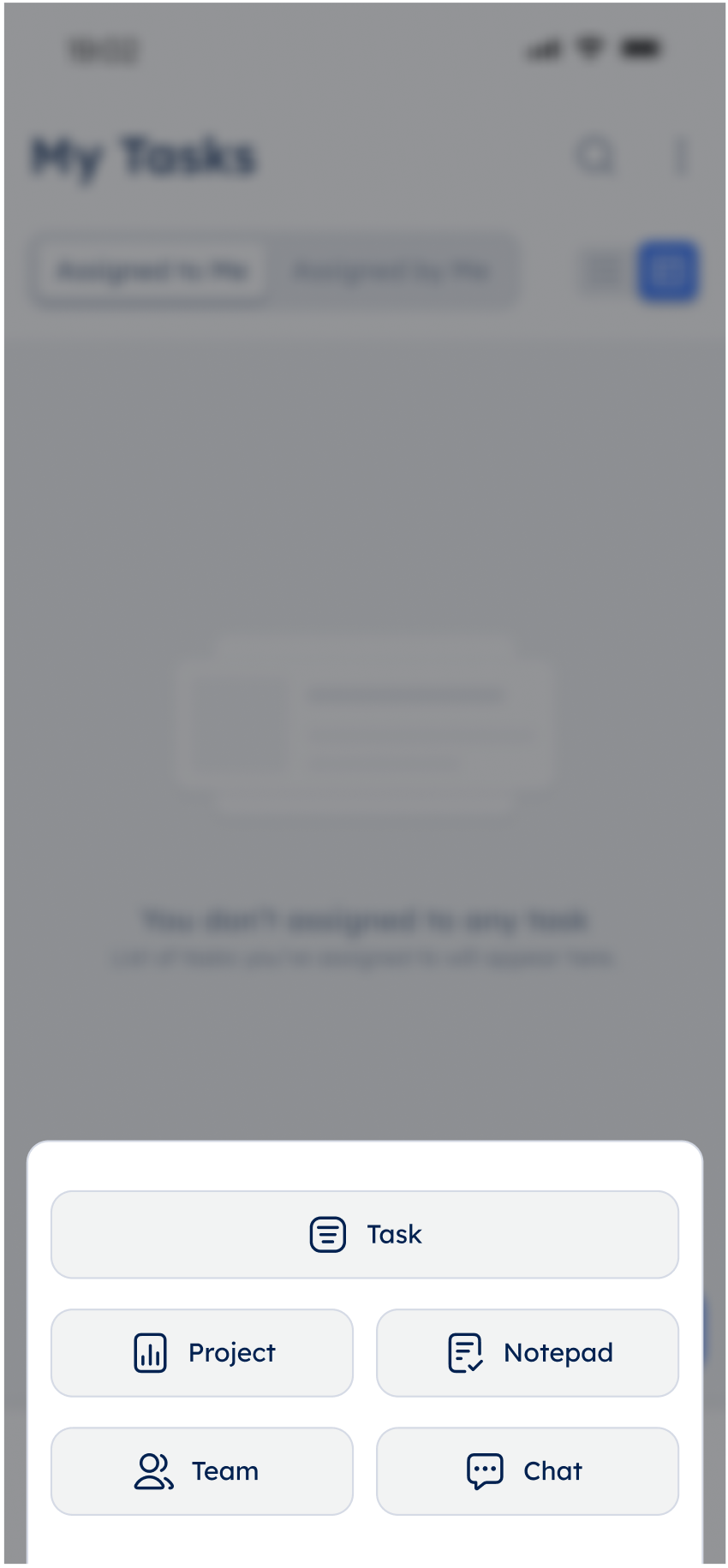
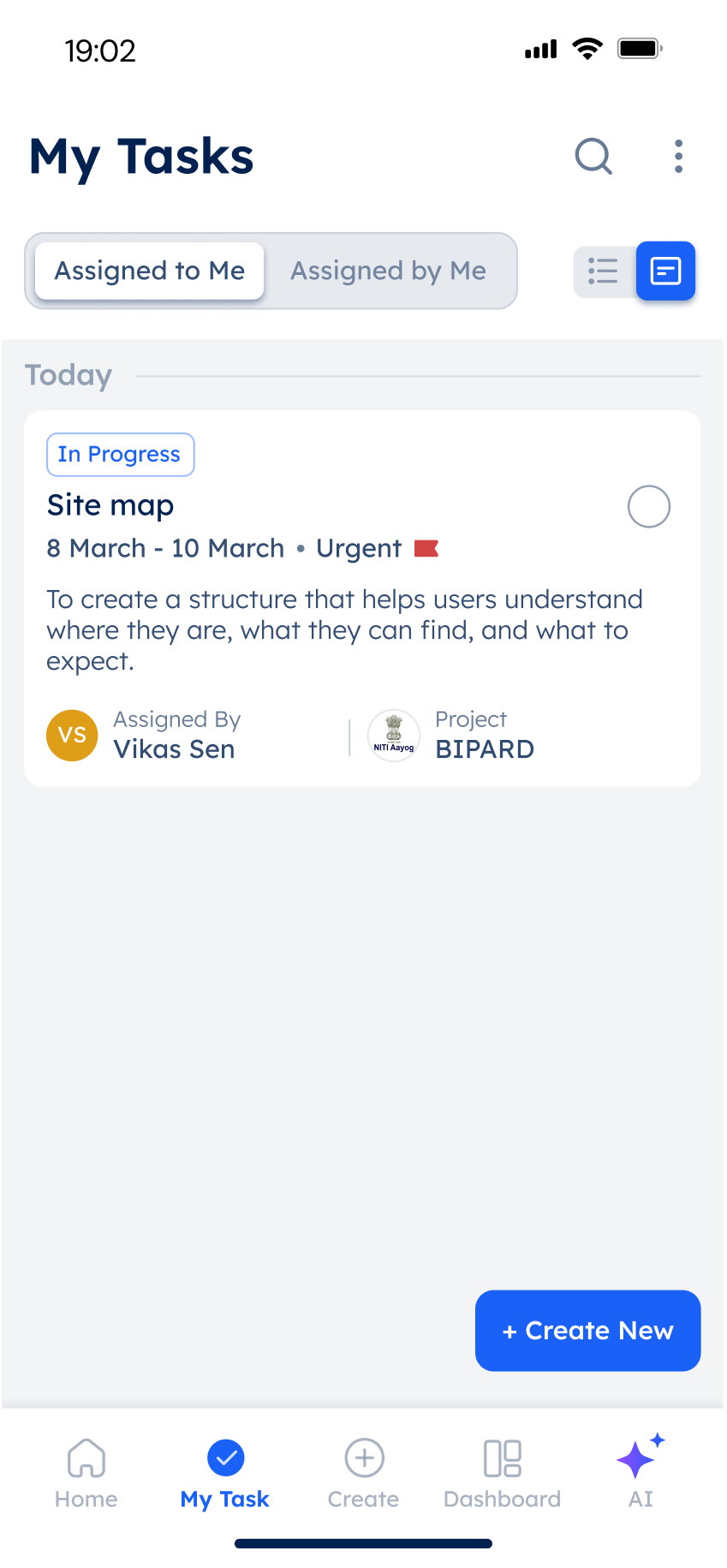
To reduce interruptions during task setup, a shared Create menu leads to a task form. The form keeps ownership, dates, and priority together; the saved task then appears in My Tasks.
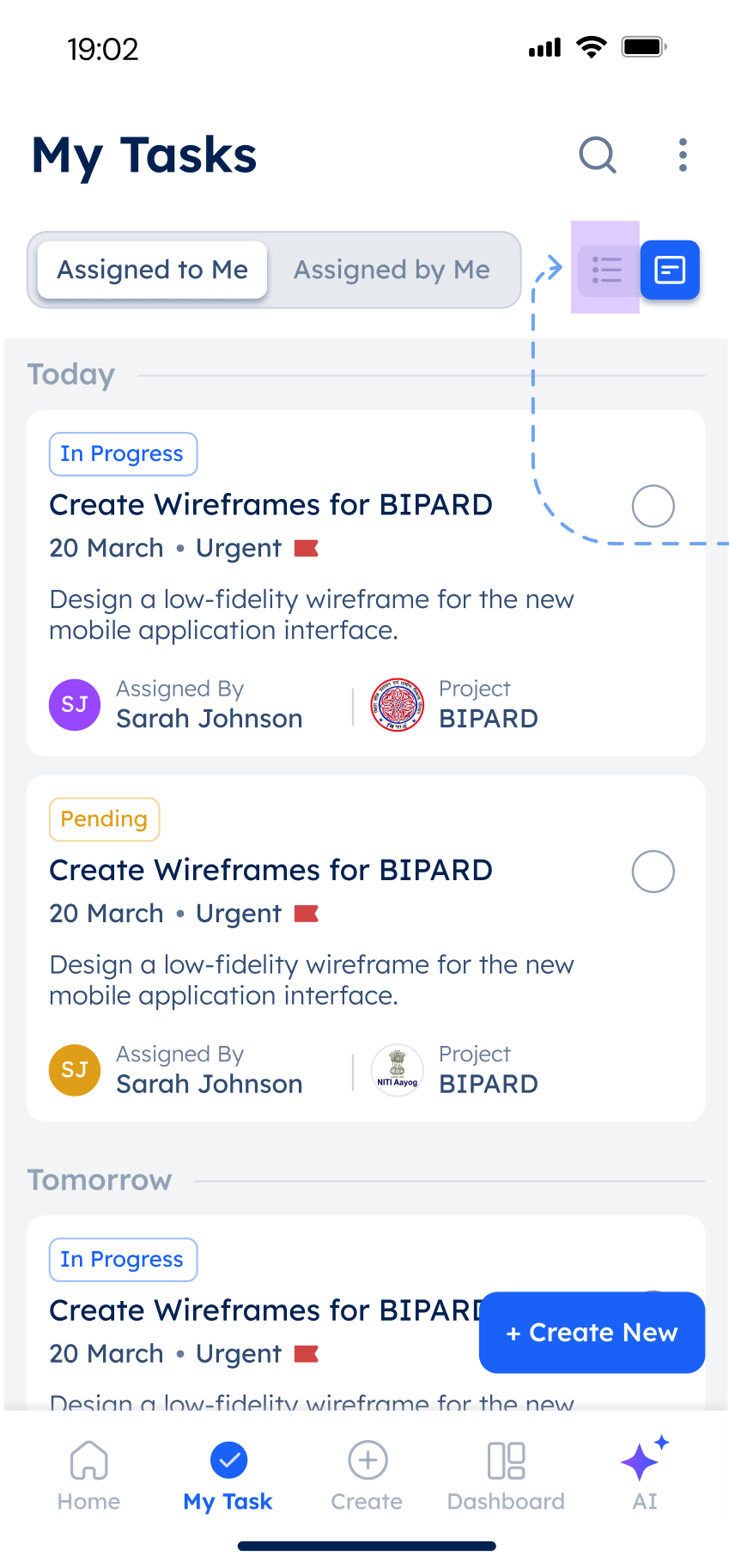
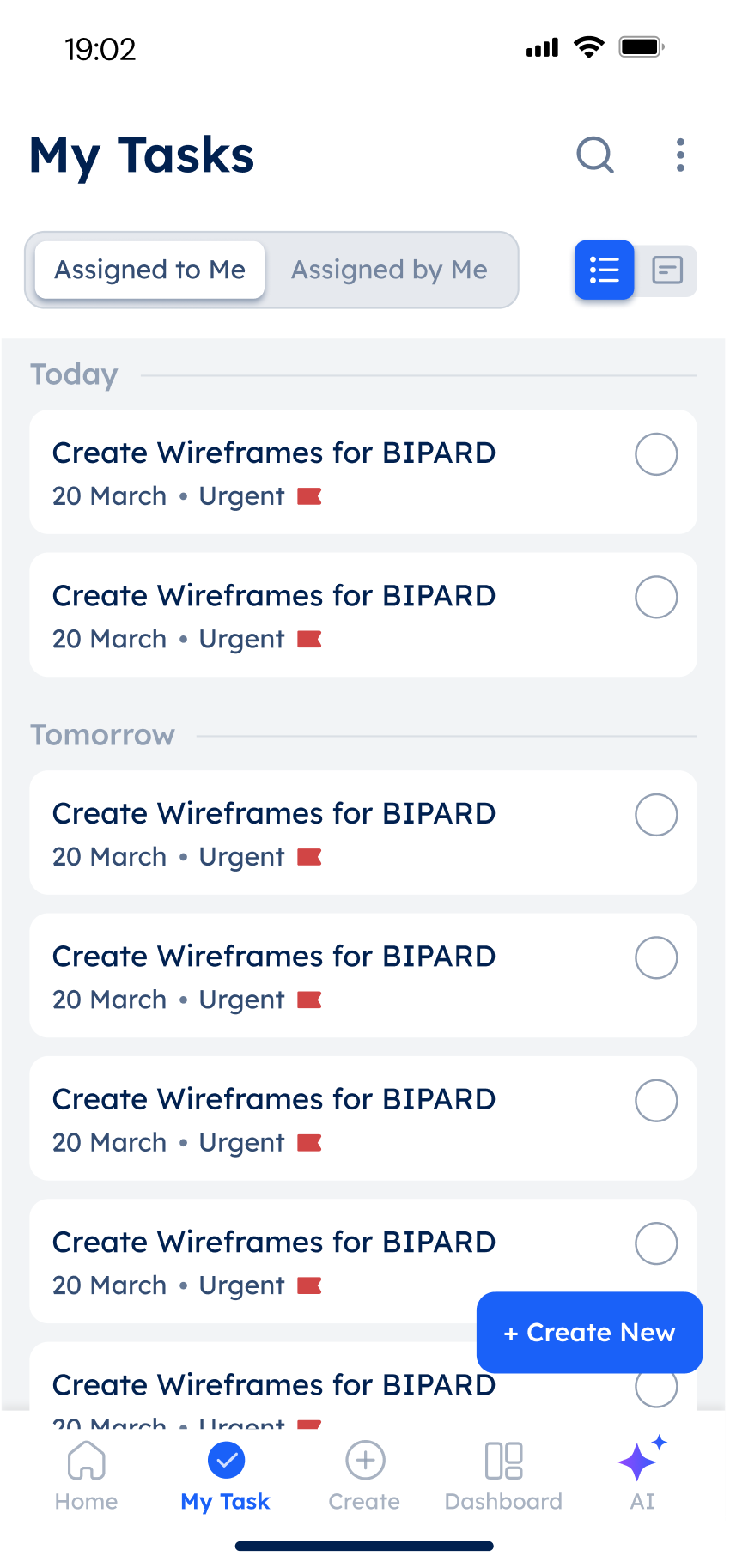
My Tasks separates work assigned to you from work you delegate. Descriptive and list views offer different levels of detail for reviewing the same workload.
“Assigned to me” supports personal execution. “Assigned by me” supports follow-up and coordination.
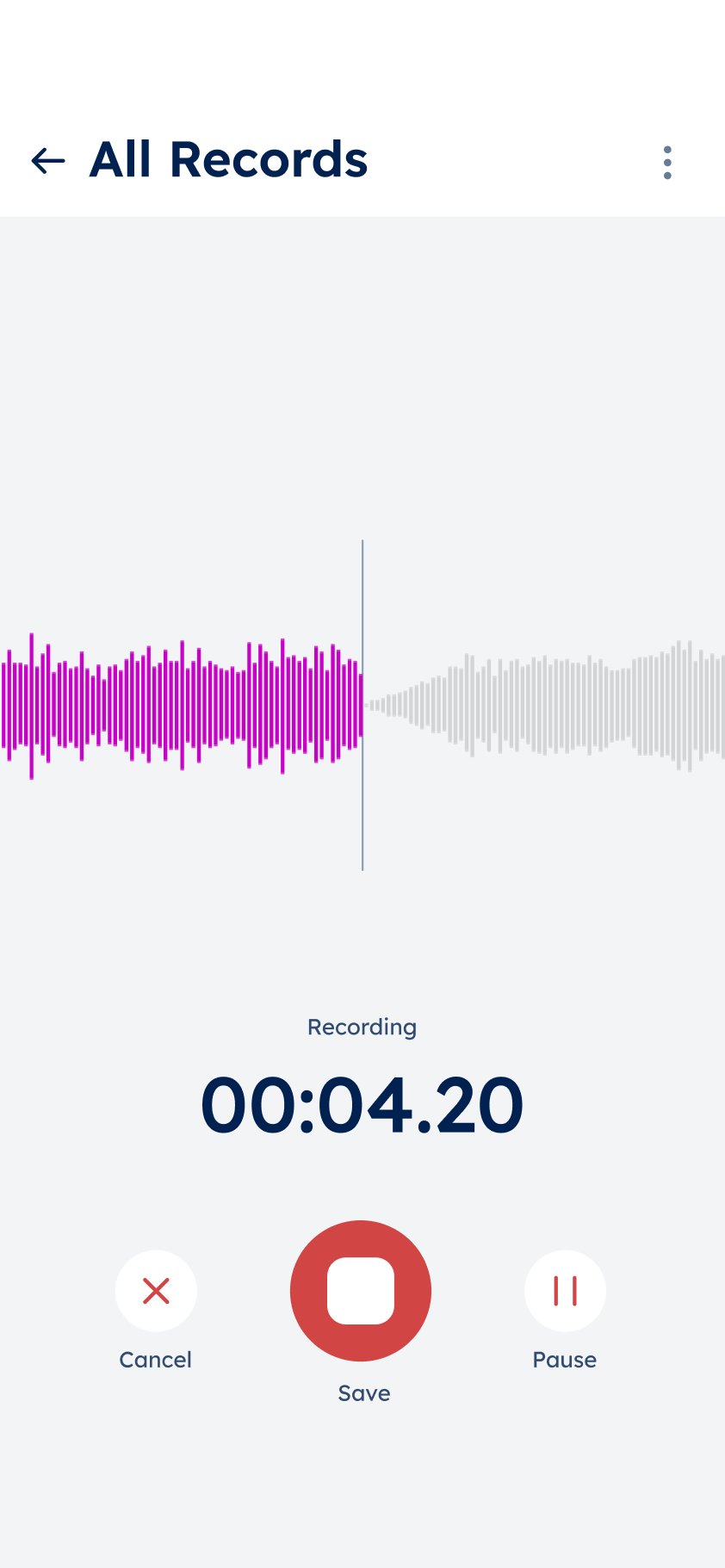
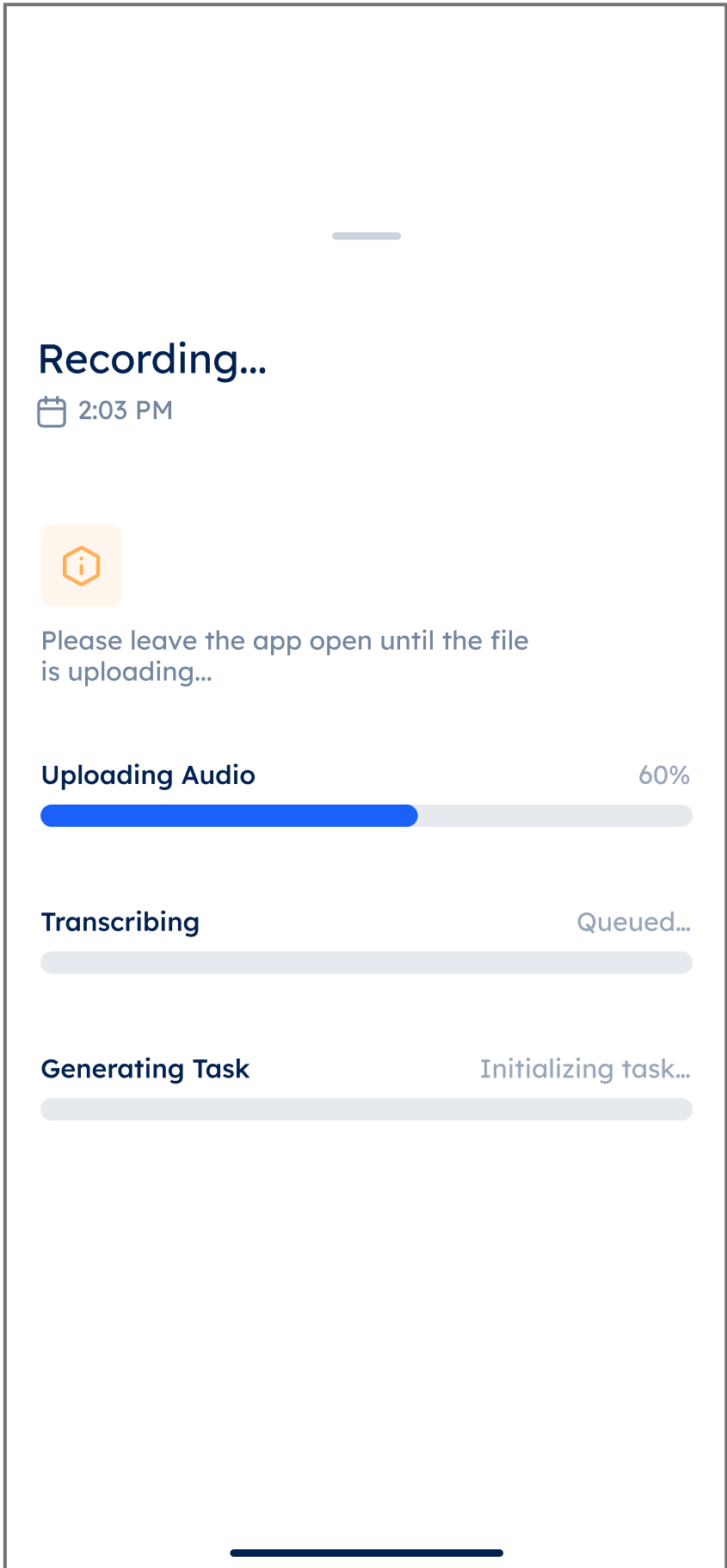
To keep meeting context connected to action, the recording flow shows capture, processing, and a summary with AI task suggestions. People can edit suggestions or reject all tasks before creating them.
 ↗
↗ ↗
↗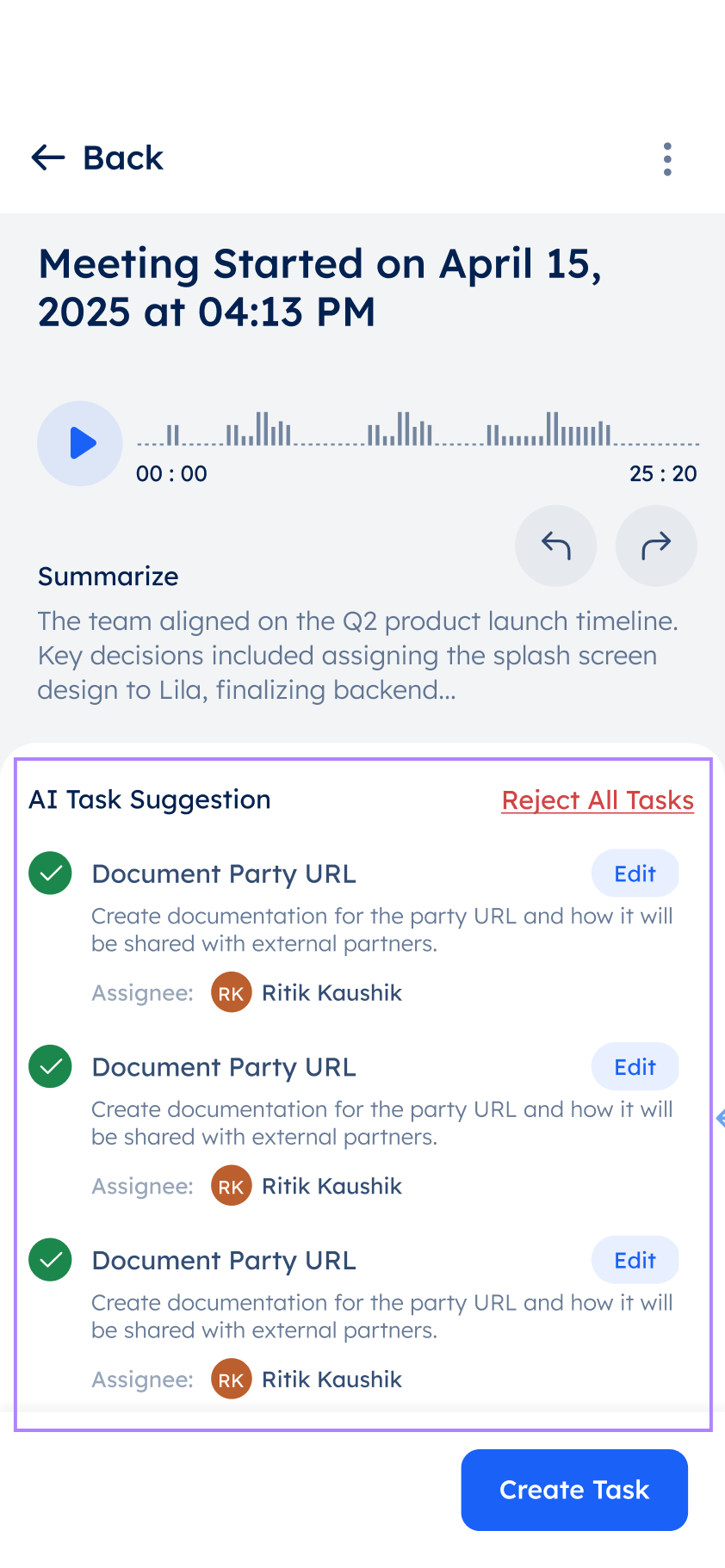 ↗
↗The important interaction: suggestions stay reviewable. The design gives people a way to check the proposed work before creating tasks.
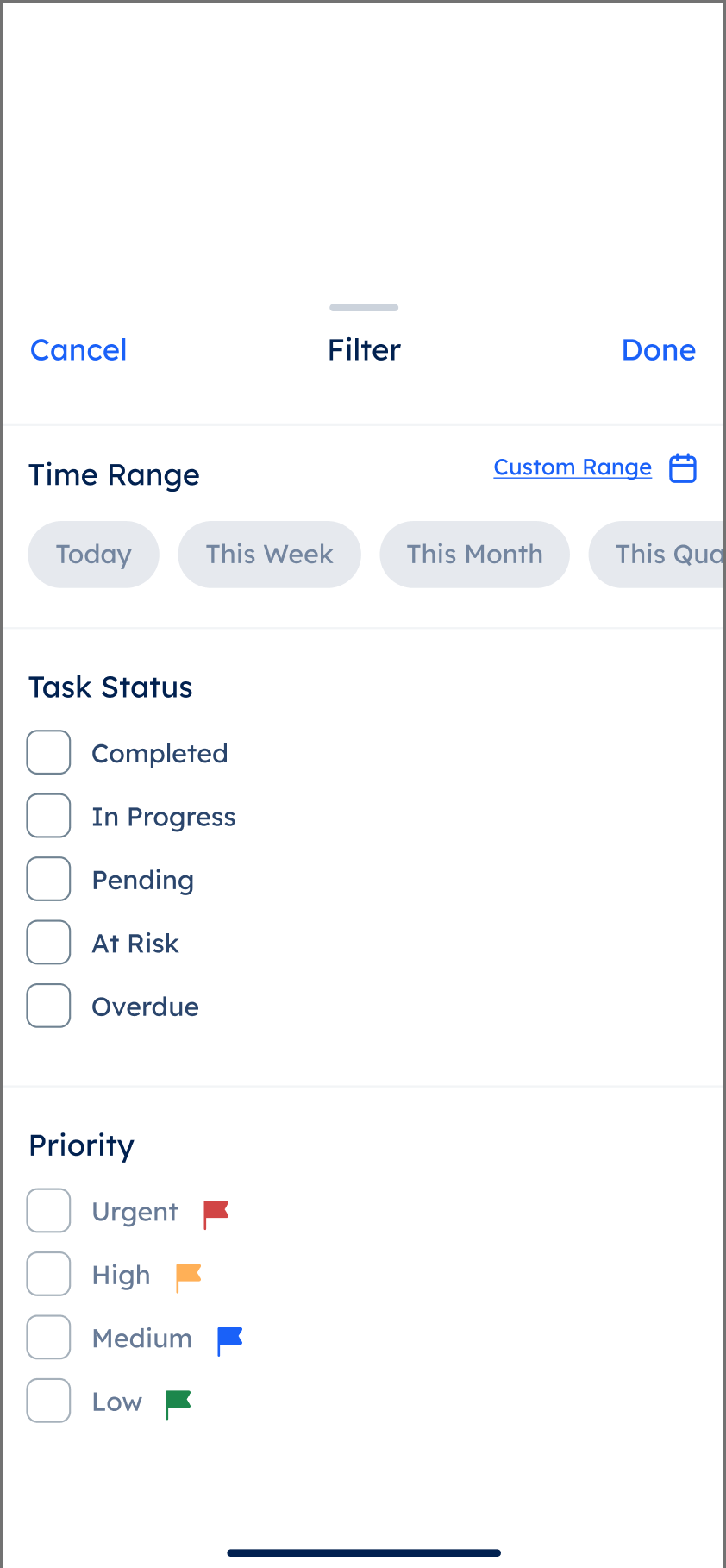
The dashboard moves from task totals to progress, deadline status, workload, and trends. Filters help people focus on a time range, status, or priority.
Values inside the UI are example dashboard data, not measured project results.
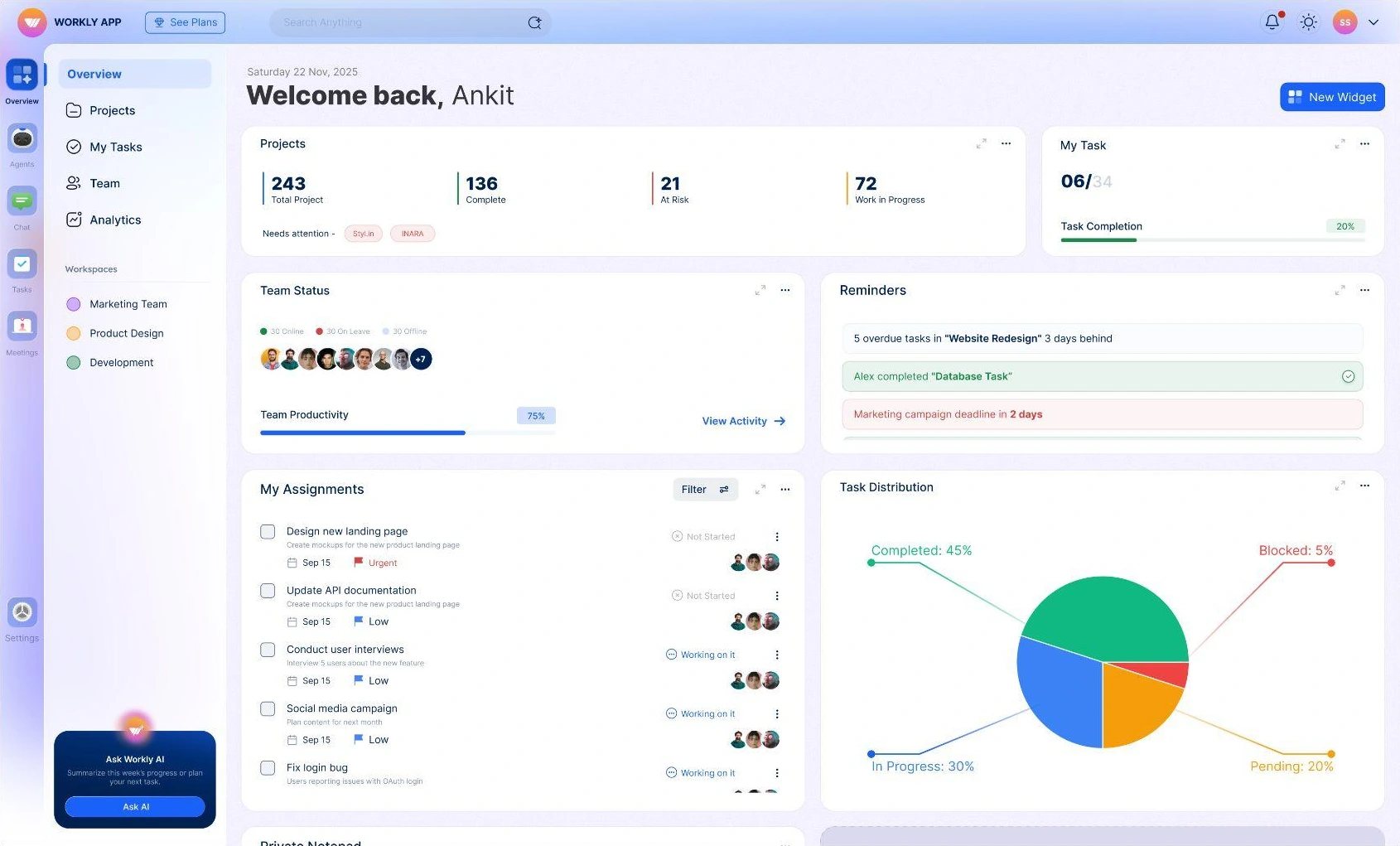
The desktop workspace brings project health, personal assignments, and team activity into one view. From this overview, people can move into the detail they need.
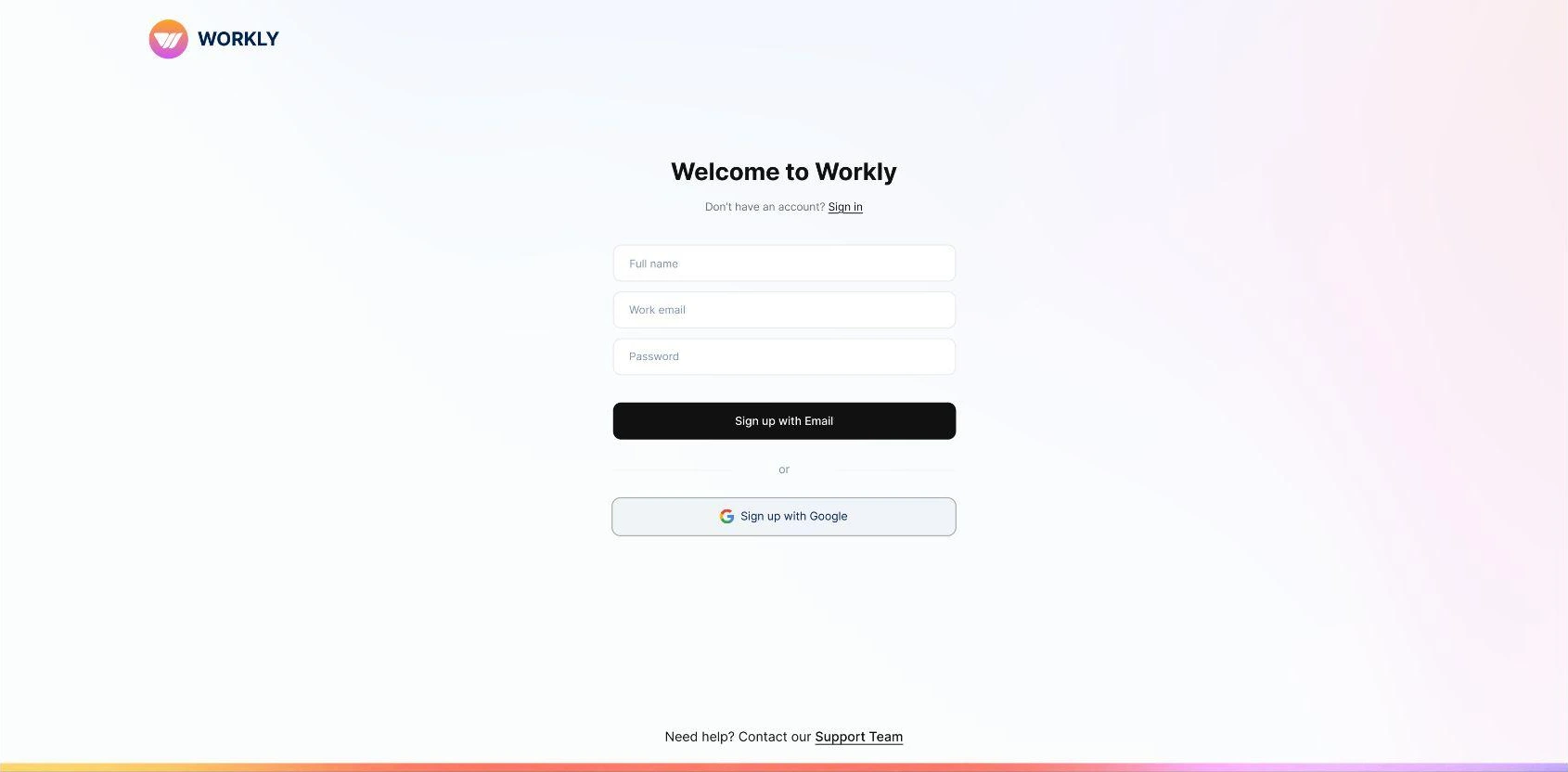
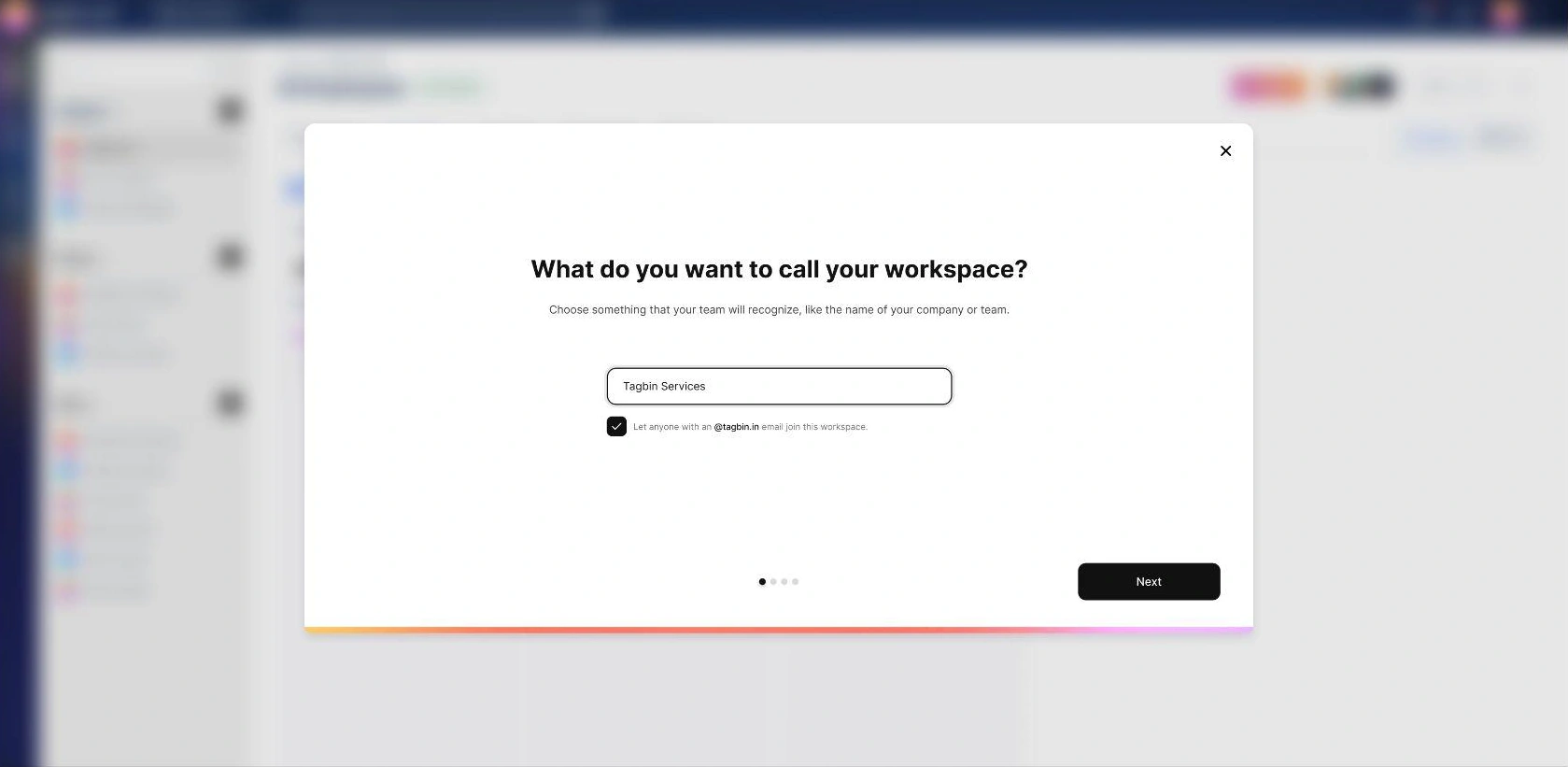
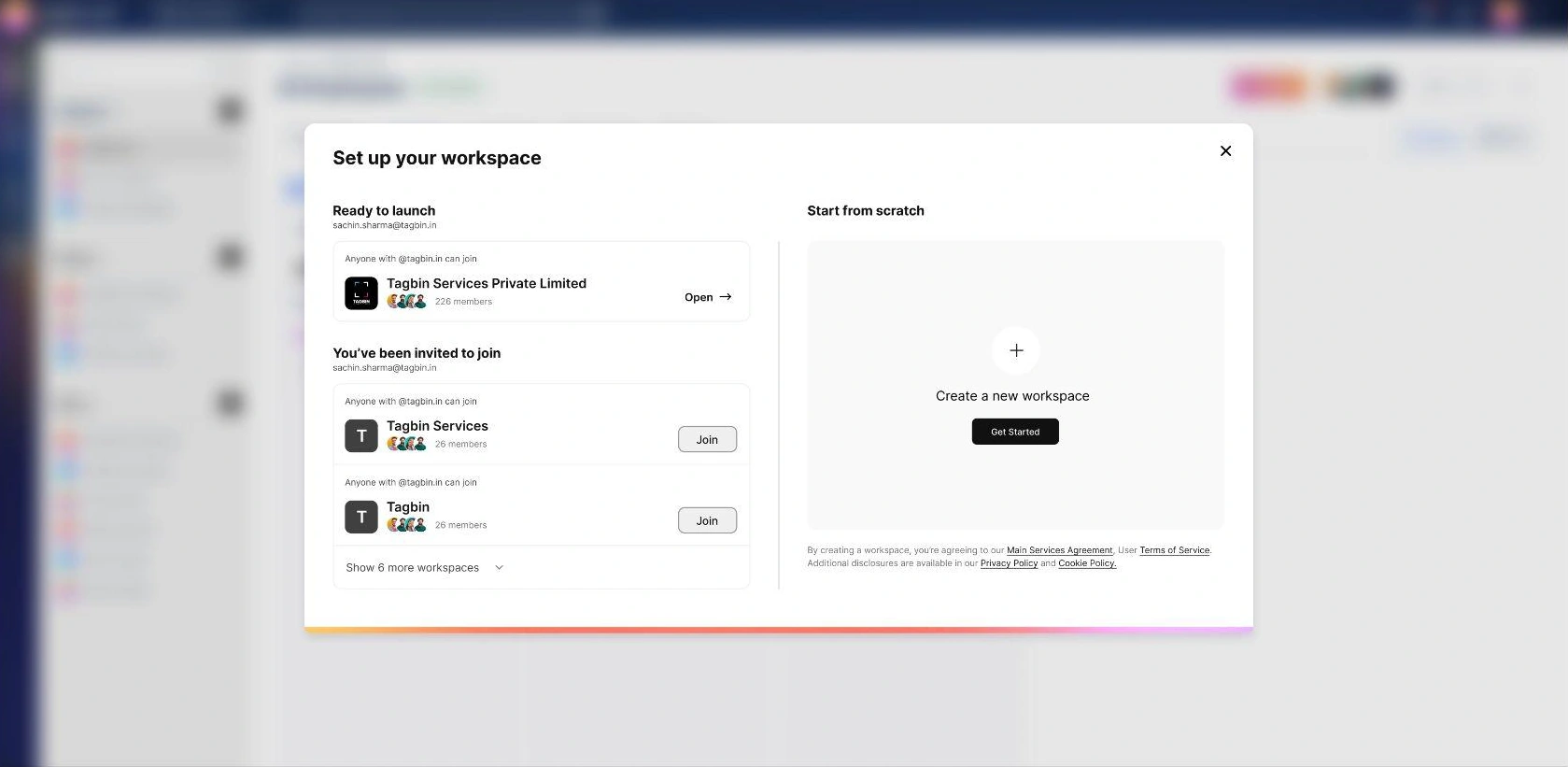
The setup sequence moves from creating an account to naming a workspace, then joining an existing workspace or starting a new one.
 Enlarge ↗
Project totals and completion states establish the overview before the interface moves into individual tasks.
Reminders bring overdue work and upcoming deadlines beside the assignments that need action.
Persistent navigation separates projects, personal tasks, teams, and analytics while keeping workspace shortcuts visible.
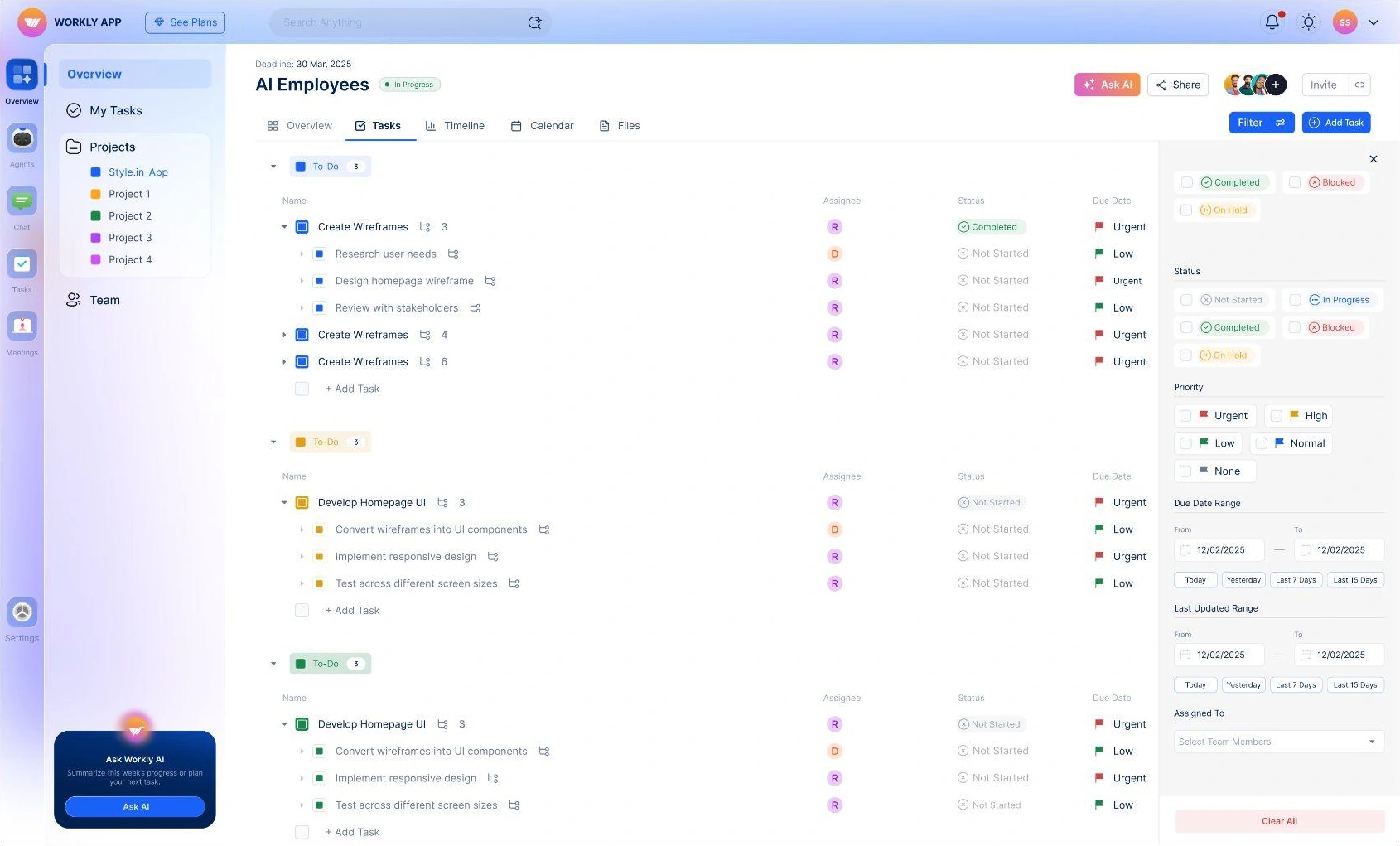
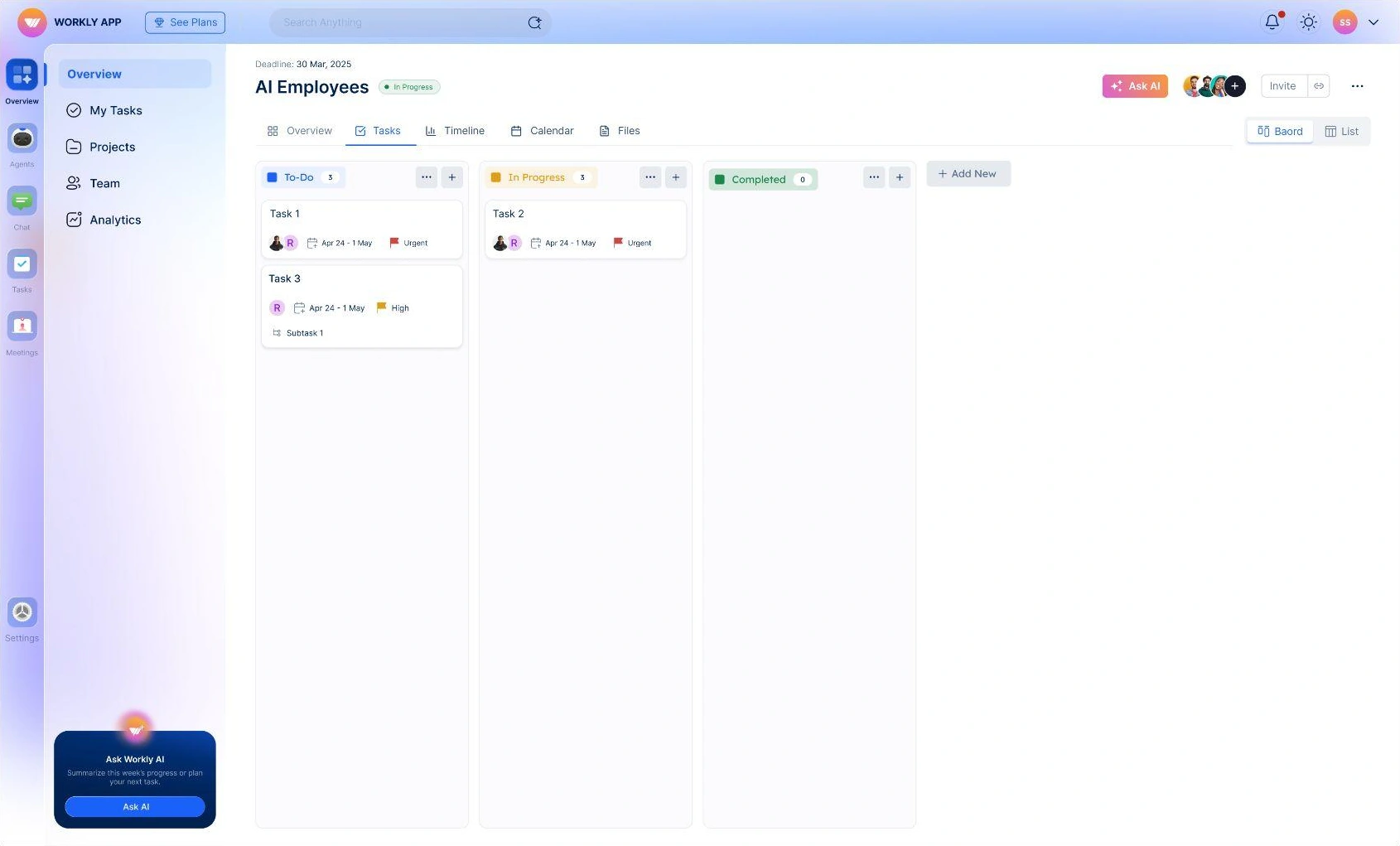
The list view groups task information into rows for comparison. The board view places cards into status columns so people can see how work is distributed across stages.
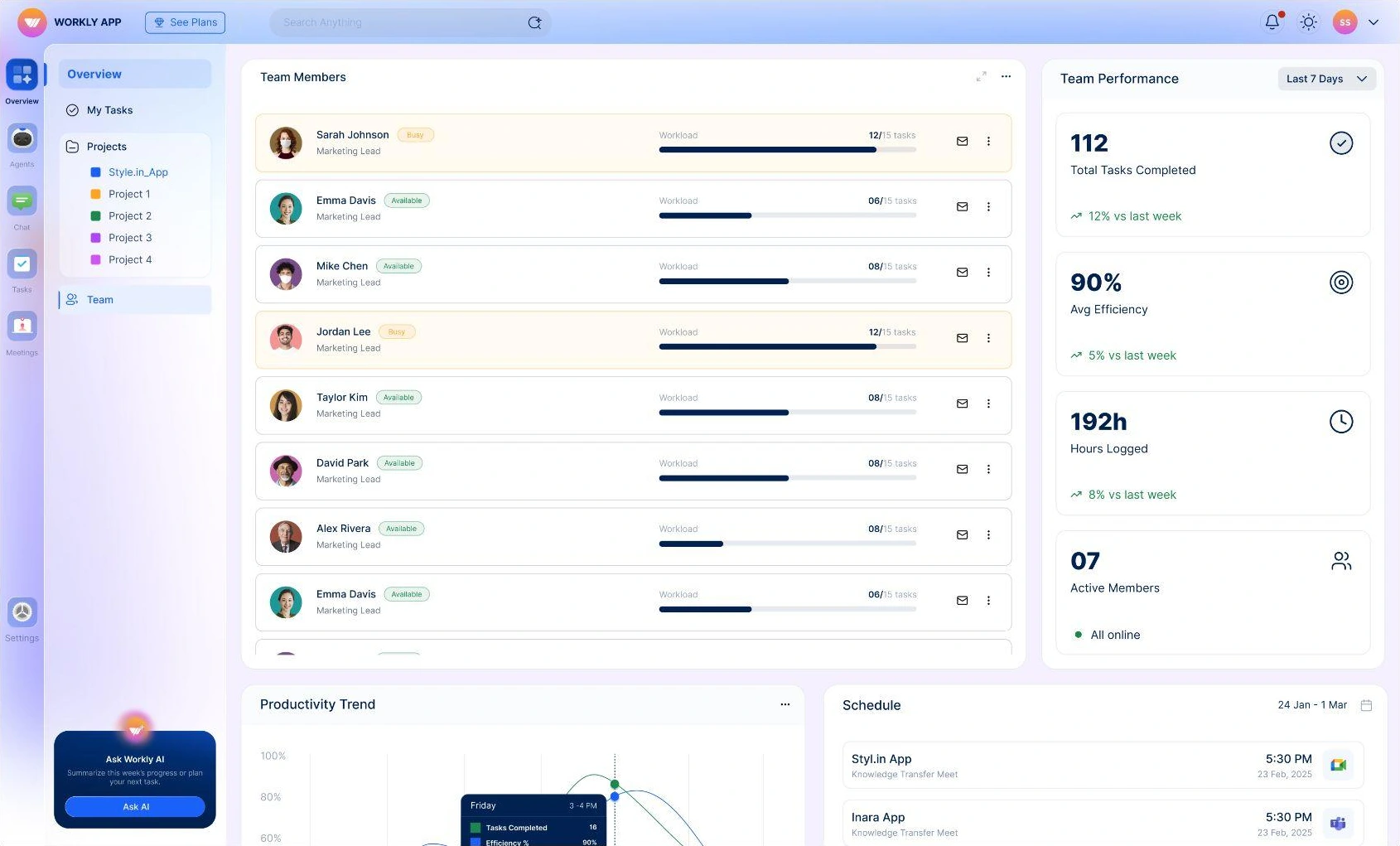
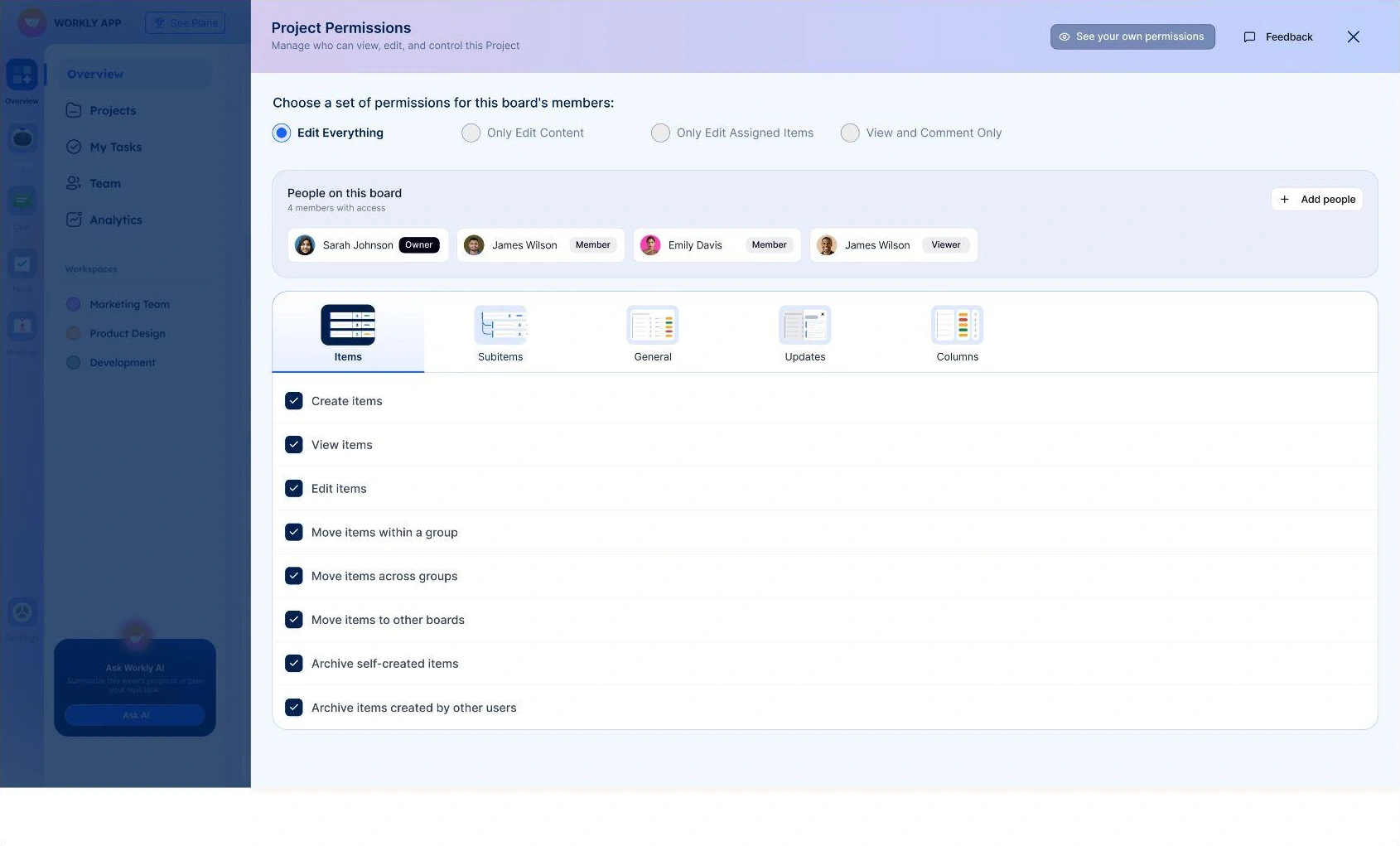
Team reporting and project permissions support the coordination behind everyday tasks. One view makes team activity visible; the other makes access settings explicit.
 Enlarge ↗
 Enlarge ↗
All numbers shown in these screens are sample interface data, not measured project outcomes.
The design brings together onboarding, a customisable home, task management, meeting recordings, and progress reporting. Each flow supports a different moment in the working day.

One product.
Five stories to tell.
Beyond the product experience, these promotional banners translate Workly’s features into quick, visual stories. Each pairs a benefit-led headline with a real interface preview, using a consistent blue background and phone-led composition.
Bold headlines establish the message. Phone screens demonstrate the feature. Floating interface details draw attention to the key interaction.